DimDock

Effortless monitor brightness for Windows 11.

Ditch the monitor buttons. Control real DDC/CI brightness from your taskbar with a native Quick Settings flyout, scroll-wheel dimming, and multi-monitor sync.

winget install ohivan.DimDock
LG UltraGear 27"
82
Dell U2723QE
64
ASUS ProArt PA279CV
48

Designed to match Windows 11 Quick Settings.

Left-click the tray sun icon for a native Fluent Acrylic flyout, right-click for quick settings with animated toggles, or scroll your mouse wheel directly on the tray icon.

Brightness Flyout

Instant DDC/CI sliders anchored directly above the Windows 11 taskbar.
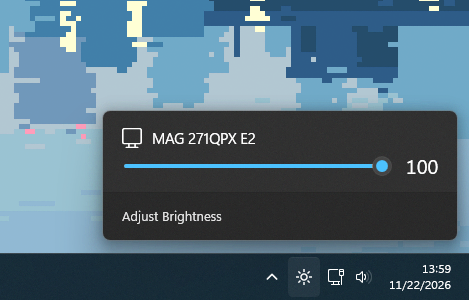
DimDock brightness flyout anchored above the Windows 11 taskbar showing MAG 271QPX E2 at 100%

Native Tray Context Menu

Animated WinUI 3 pill toggles, scroll target, scroll step, and built-in updates.
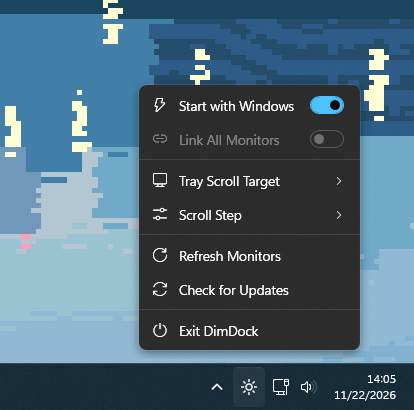
DimDock Windows 11 tray context menu with Start with Windows, Link All Monitors, Tray Scroll Target, Scroll Step, Refresh Monitors, Check for Updates, and Exit DimDock

Built to feel built-in.

Focused WinUI 3 controls, authentic acrylic surfaces, and zero bloat.

True Hardware DDC/CI

Adjusts real monitor backlight luminance over DDC/CI instead of tinting pixels with a software overlay.

Scroll on the Tray Icon

Hover the DimDock taskbar icon and roll your mouse wheel to step brightness by 1%, 2%, 5%, or 10%.

Independent or Linked

Control every external monitor separately, or toggle Link mode to keep your entire desk in sync.

Native Windows 11 Fluent UI

Acrylic flyout, system accent color, light and dark themes, and native taskbar context menu toggles.

Dynamic Sun Glyph

DPI-aware taskbar icon whose core and rays scale smoothly with brightness so you can read level at a glance.

Lightweight & Resilient

Built on .NET 10 WPF with throttled DDC writes, automatic wake/display rescanning, and zero telemetry.

Light on your PC, all day long.

DimDock is built natively for Windows instead of wrapping a hidden web browser, so it uses far less memory than Twinkle Tray.

Active RAM (shown in Task Manager)
DimDock
73.4 MB
Twinkle Tray
134.2 MB 1.8x
Reserved RAM (memory set aside by Windows)
DimDock
135.9 MB
Twinkle Tray
316.1 MB 2.3x
Total Memory Used (including shared Windows files)
DimDock
180.8 MB
Twinkle Tray
484.8 MB 2.7x

Average of 5 measurements on Windows 11 while both apps sat idle in the system tray (compared against Twinkle Tray v1.17.2).

Why It Uses Less RAM

1 DimDock background task
5 Twinkle Tray tasks
  • How DimDock is built One lightweight native Windows app with no extra layers
  • How Twinkle Tray is built Runs a bundled web browser in the background across 5 tasks
  • Memory saved 60.8 MB less active RAM & 180.2 MB less reserved memory
  • Install size Small download โ€” no ~300 MB browser engine bundled

Get DimDock

Install via WinGet in one line or grab the latest release directly from GitHub.

Install & Download

v1.0.0
Option 1 โ€” Windows Package Manager (WinGet)
winget install ohivan.DimDock
Option 2 โ€” Direct Download

System Requirements

  • Operating System Windows 11 (x64)
  • Monitor Support External monitors with DDC/CI enabled in OSD
  • Startup Optional “Start with Windows” toggle in tray menu
  • Privacy & License Zero telemetry ยท Open source under MIT